Deactivate two-factor authentication
To turn off two-factor authentication (2FA) for your TimeMaker account, sign in, open the deactivation command in the Tools menu, and confirm with your current password.
1. Get a login code
If you have access to Google Authenticator
Open Google Authenticator and use the current code for your TimeMaker account.
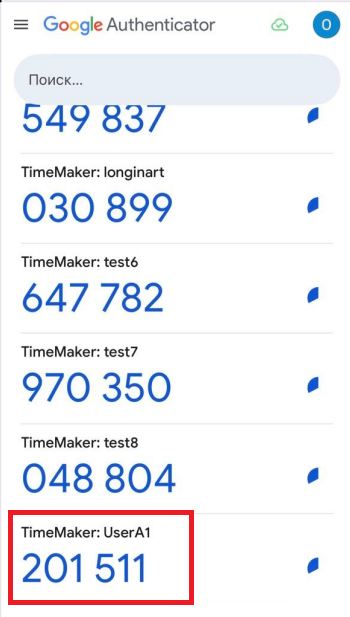
Example only: use the current code shown in your own app.
If you cannot access Google Authenticator
Ask your TimeMaker administrator for a one-time login code. The administrator can generate it as follows:
- Open Tools → Users Administration.
- Select your user account and click Edit User.
- On the General tab, click Generate Login Code.
- Send you the generated code. TimeMaker copies it to the administrator's clipboard.
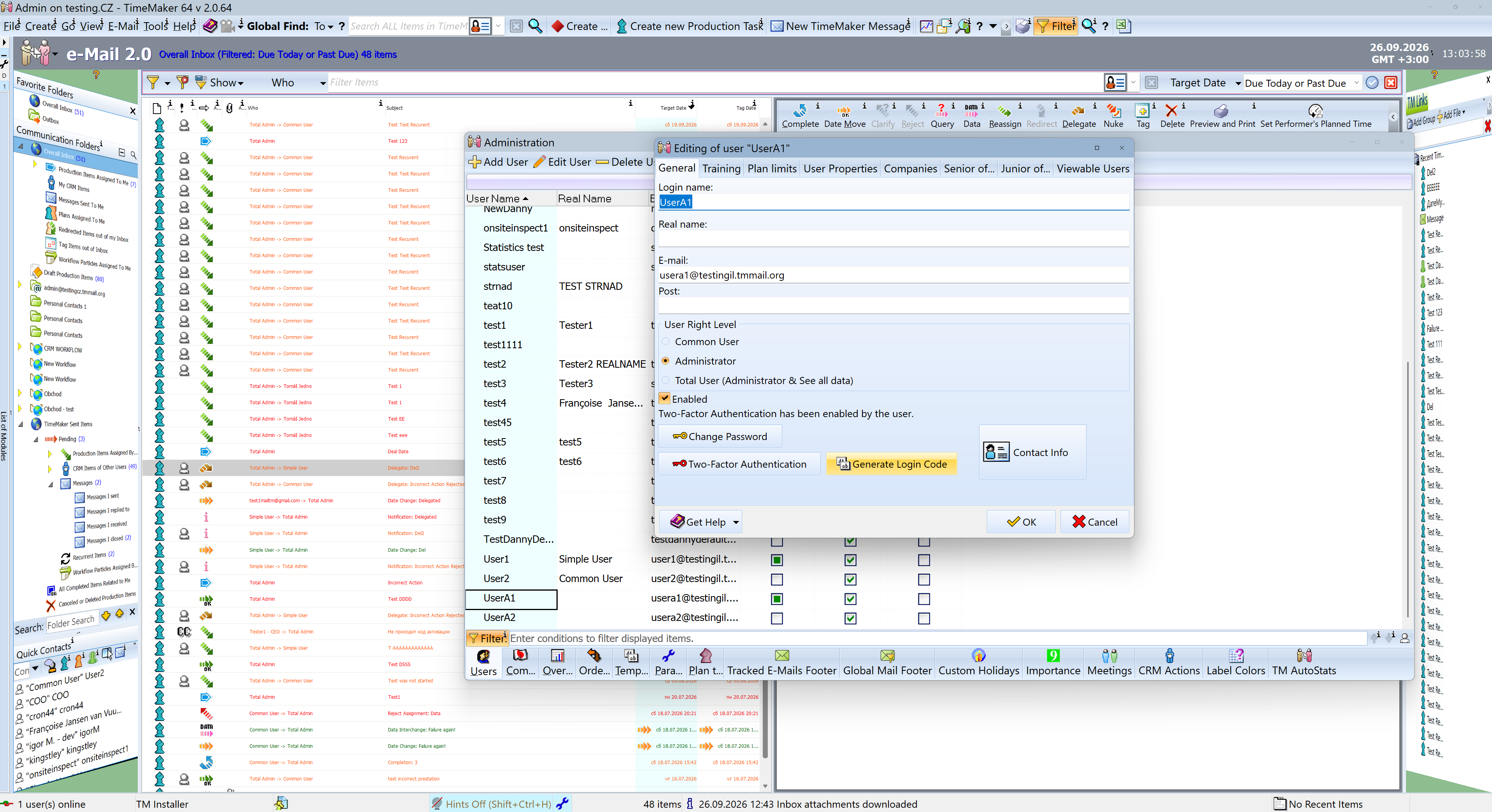
The administrator generates the code for your user account.
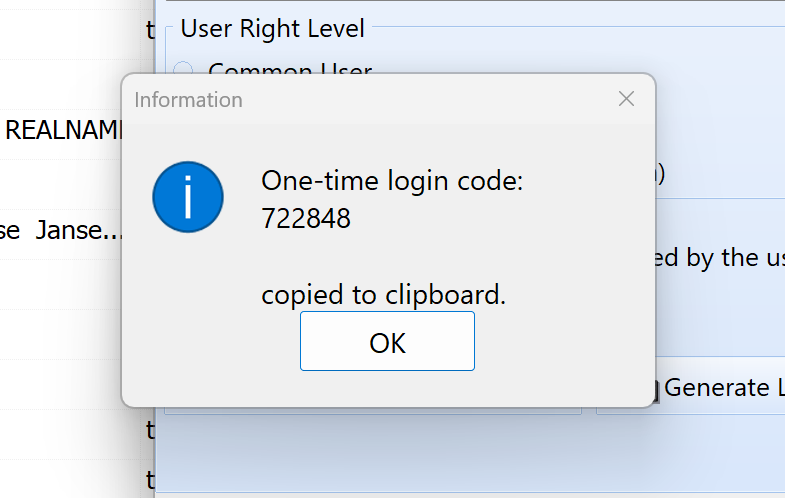
Example confirmation shown to the administrator.
2. Sign in to TimeMaker
- In the login window, enter your user name and password and click Login.
- When prompted for a two-factor authentication code, enter the current code from Google Authenticator or the one-time code provided by your administrator.
- Click OK to continue signing in.
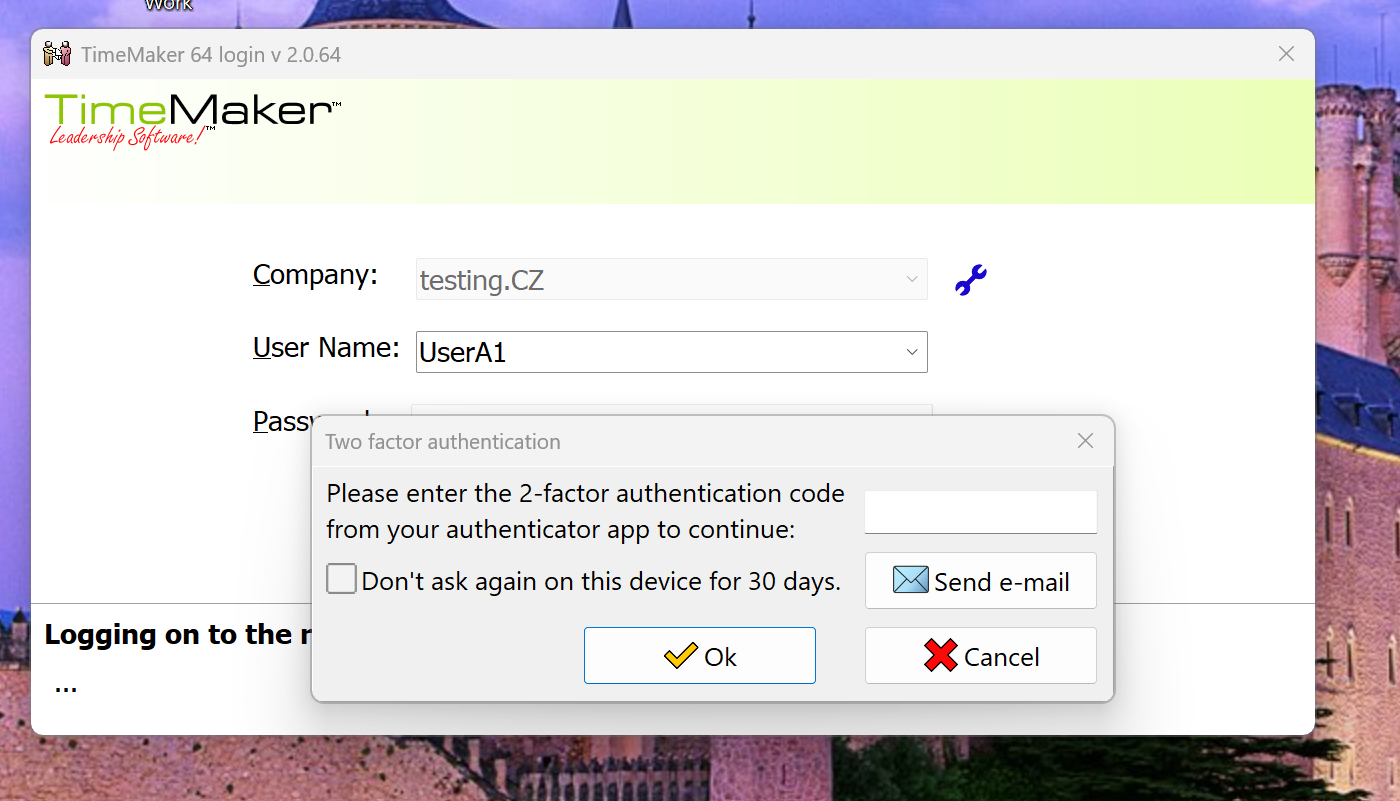
3. Open the deactivation command
Choose Tools → Two-Factor Authentication → Deactivate Two-Factor Authentication.
Some versions use the spelling Authentification in these menu labels, as shown below.
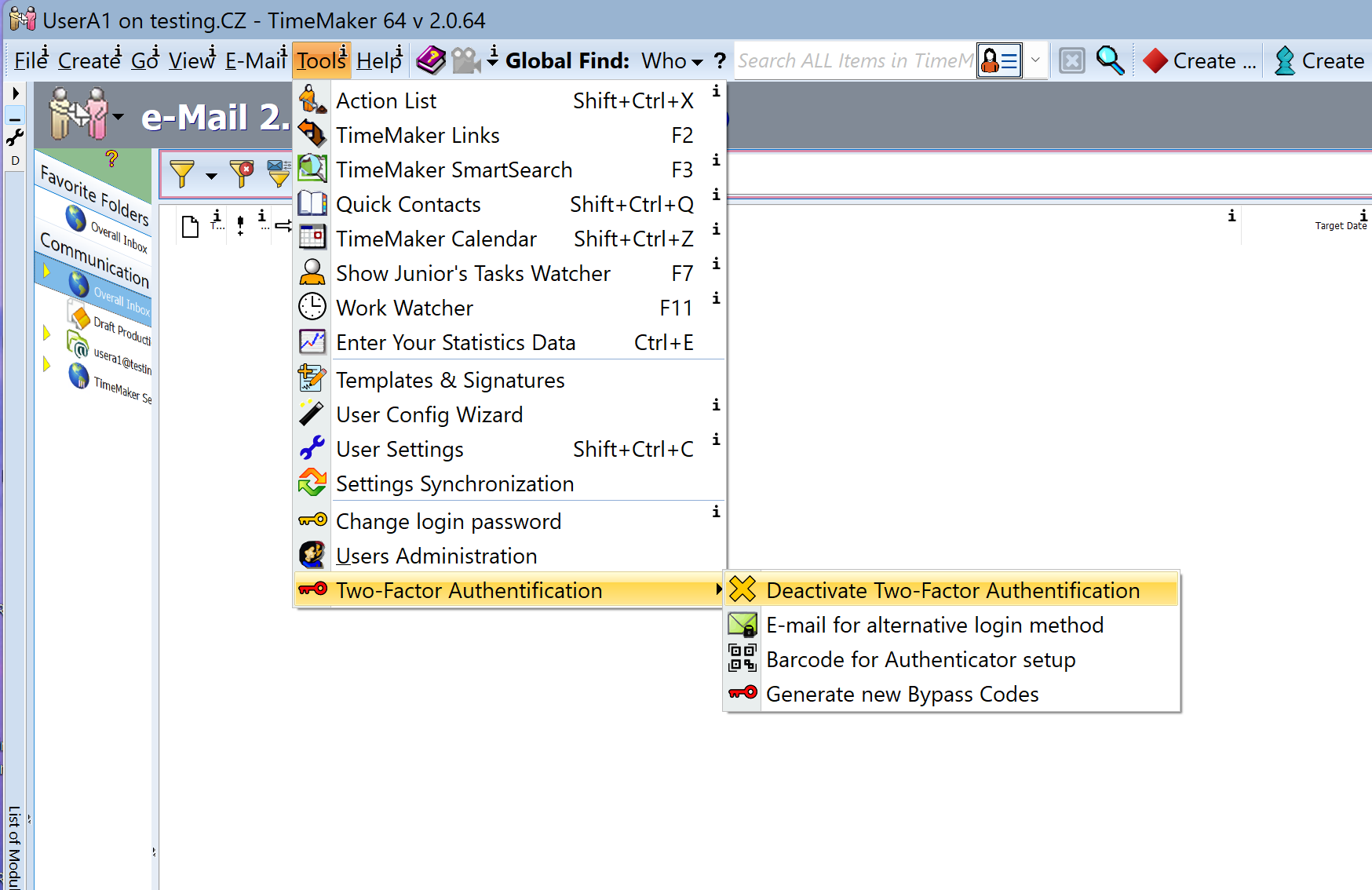
4. Confirm deactivation
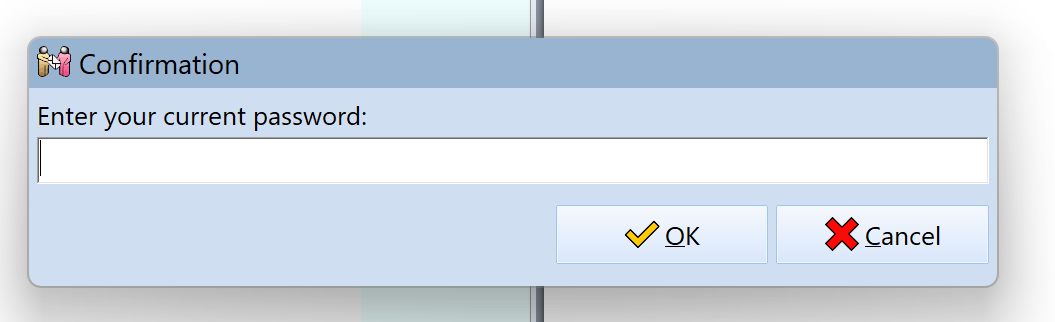
Enter your current TimeMaker password and click OK.
In the next dialog, click Deactivate to turn off two-factor authentication for your account. Click Cancel if you do not want to proceed.
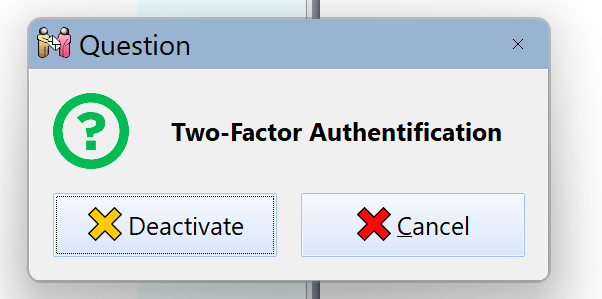
Once deactivated, two-factor authentication is no longer required when you sign in to this account.