Action List Module
The Action List Module is the management center for the user’s Action Lists, including Day Action Lists, Week Action List or an Action List covering any user defined period. From the Action List Module, the user can create, view and edit the user’s Action Lists.
Action List Preview
View the Day and Week Action lists assigned for the selected day. In the Preview window you can see Action list(s) related information: Status, Start date, Target date, number of Tasks assigned etc.
Adding Action Items to the Action List

Allows you to add new items to the Action List.
What happens if clicked?
To add a new Action List Item, enter a name for the Action List Item in the Add box,
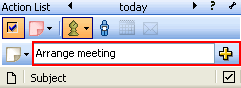
and click 
To enter a date other than the selected date, highlight the desired date in the Calendar above the Action List.
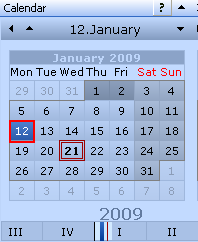
Enter a name for the Action List Item in the Add box, and click 
.
Note: After entering text in the Add box, clicking the Enter button will add an Action List item at the selected date.
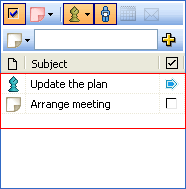
The Production Task scheduled or Tagged for a particular day and all Action List Items are shown on the Action List for that day.
Calendar
In the Calendar of the Action List Module you can select TM User to observe hisher list of Actions in the Preview window. Check the Status check box to filter the items by status, for example, preparing, active or finished Action items. Clicking on a date will show you Action(s) assigned for that date.
Show/Hide Completed Action List Items
This feature gives you the An ability to Show or Hide Completed Action List Iitems. If the Show/Hide icon is enabled, it is highlighted in yellow 
and completed Action List Items will be displayed in the Action List.
When the Show/Hide icon is disabled 
completed Action List Iitems are not displayed in the Action List.
Note: To complete an Action Item in the Acton List, select the Complete check box.
