Login window
If you need to turn off two-factor authentication or cannot access Google Authenticator, see Deactivate two-factor authentication for sign-in and deactivation instructions.
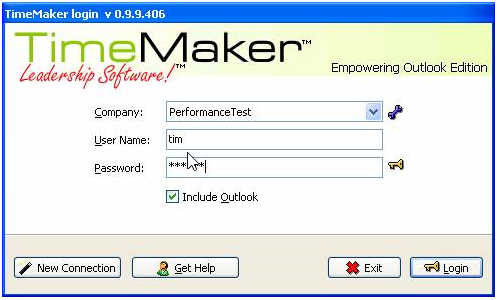
The following window is the Login Window.
-
Select a language in the box next to the “User name“
-
Check the checkbox in case you want to include Outlook
-
Click “New Connection” to create a new server connection
-
Enter the “User Name” and “Password” (if you did not enter it in Wizard)
-
Click “Login” to login

Offline Authorization
The password you entered is first authorized locally and then authorized on the server. If the administrator has changed your password, you will be asked to enter the previous password first and then the new password.
Click the icon to change the mode.

Online Authorization
The password you entered is authorized on the server. You must be online to login in this mode. This function is useful if you forget your password or if the adminstrator has changed it. Click the icon to change the mode.

Resynchronize data
Data will be fully downloaded from the server. To login to TimeMaker in this mode you must be online. This is usefull when data is incorrect and you want to be sure that you have all the data correct. Click the icon to change the mode.

This icon displays a window to configure the connection.
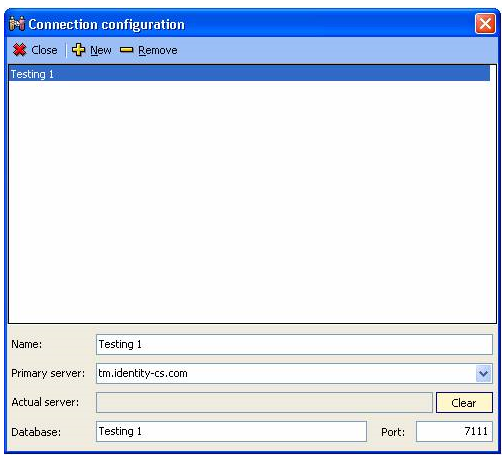
Close – click to close the window
New – click to clear all fields to enter the new configuration
Remove – click to remove selected configuration
Name – displays the name of the company
Primary server – displays the primary server address
Actual server – dispays the actual server address
Database – displays the database name
Port – displays the port number